SimONE Sessions
SimONE sessions can be done in three different formats: Face-to-Face, Virtual or Hybrid. Choose the format based on your audience size, location, and level of interaction required.
Sessions are created and scheduled from the SimONE Dashboard, where you can:
- Create a session in a few clicks: choose the format, invited participants, date and time, and the case(s) — the session is created instantly and the access codes are emailed to you.
- See all your upcoming and today's sessions in one list, with the current status of each one.
- Resend access codes whenever you need them.
- Review your license details, region and the patient cases available to you.
Sessions no longer need to be requested and set up by the SimONE team. Dashboard Admins now create them directly — see How to Create a Session and Managing Your Sessions below.
How to Create a Session
Log in to the SimONE Dashboard and follow these steps. The whole process takes a couple of minutes.
Dashboard overview
The dashboard shows the name of the License Admin, your Site Name and Region (if applicable), together with the Available Patient Cases under your active license. The session form is right there, ready to fill in.
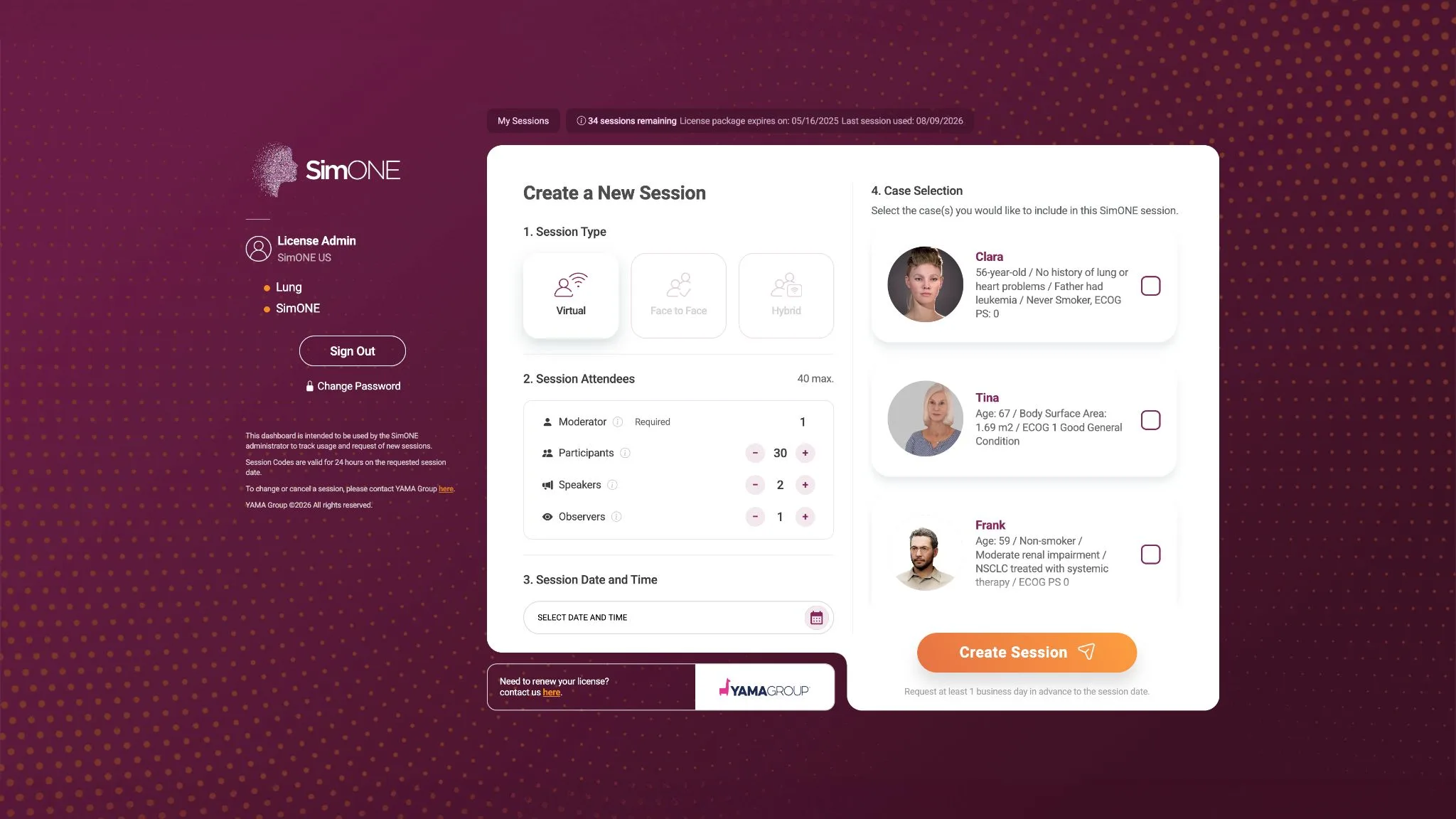
Select the session type
Choose Virtual Session, Face-to-Face Session or Hybrid, depending on the type of program you want to conduct. Not sure which one? See SimONE Session Formats below.
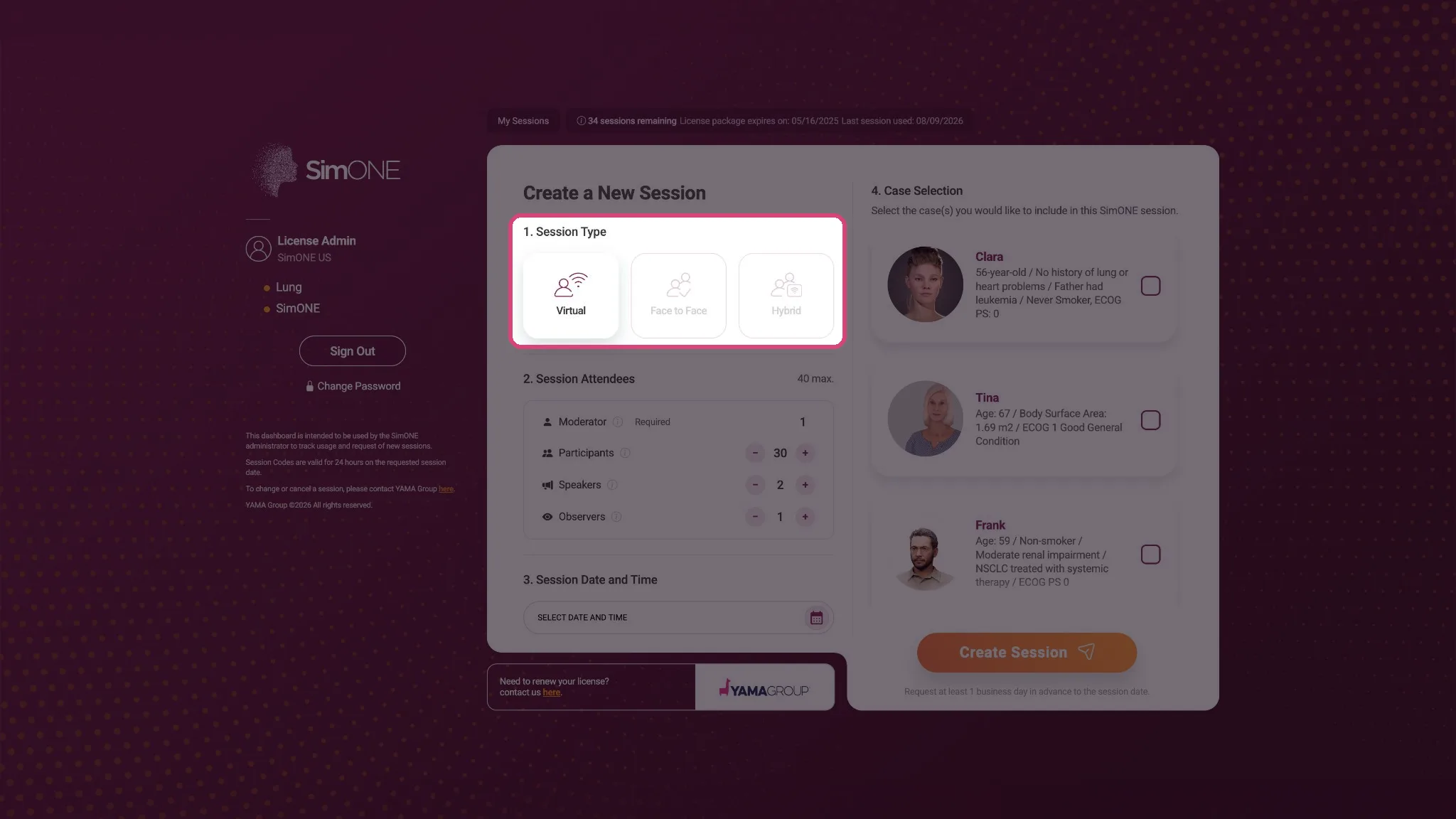
Configure session attendees
Specify the number of available seats for each role: Moderator, Participant, Observer and Speaker. You will receive one access code per role.
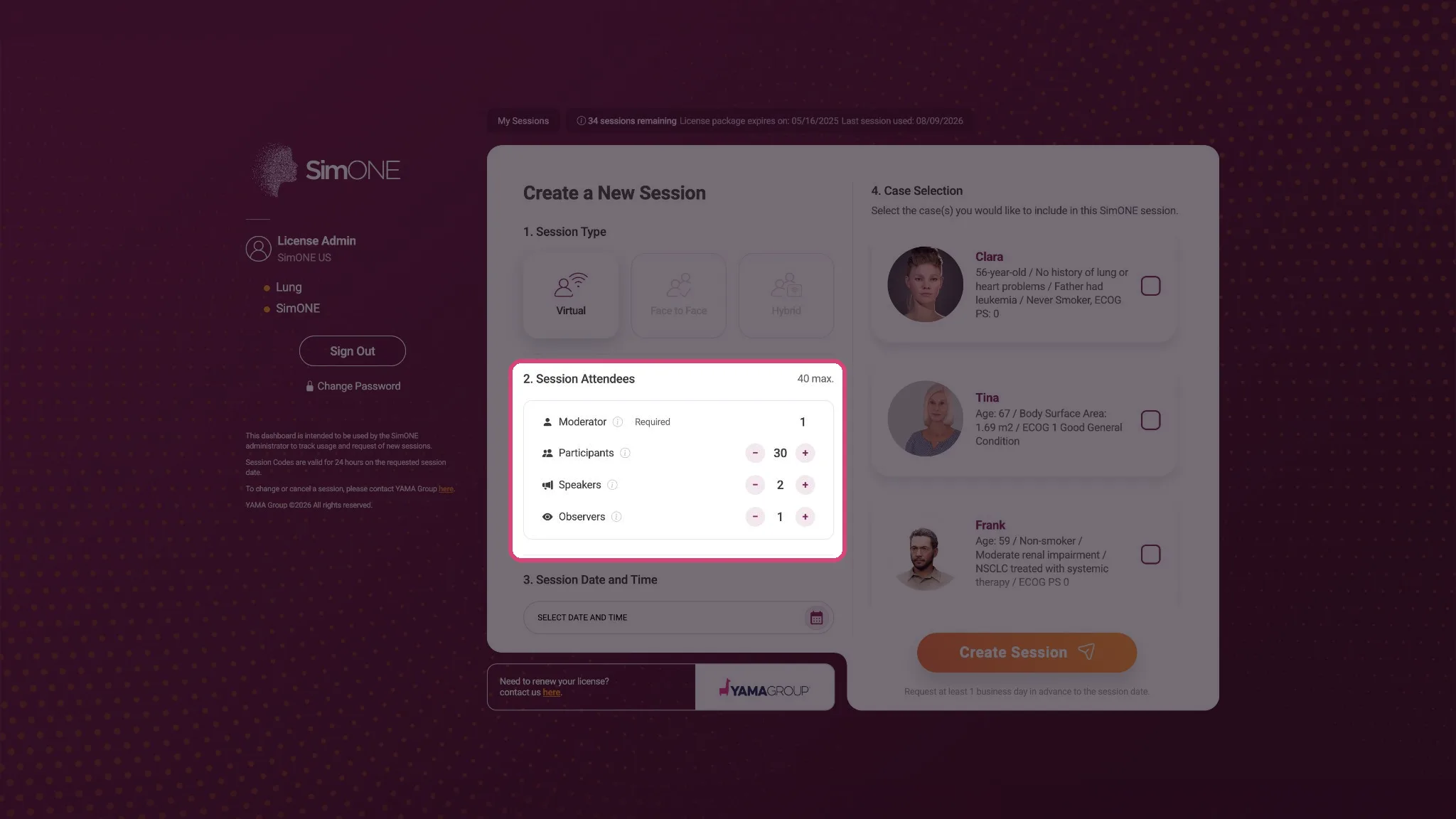
Choose the session date and time
Click the Date and Time button and, in the pop-up, select the date, time and time zone for your session. Don't forget to set the correct time zone: the session will be available for 24 hours from the selected date and time, in the time zone you chose.
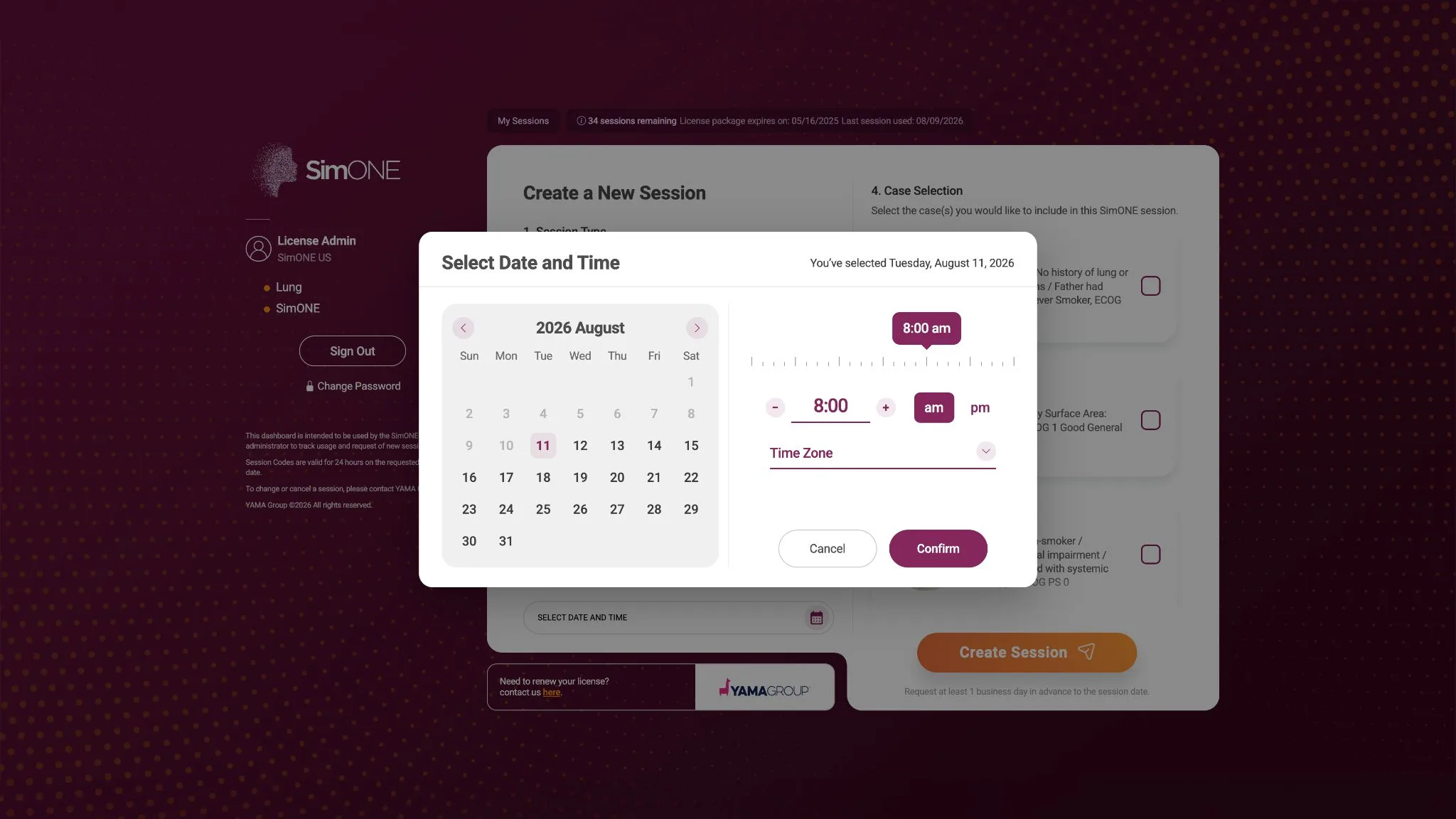
Select the case(s)
Select the case(s) you'd like to have available during the session. Only cases included in your license are listed.
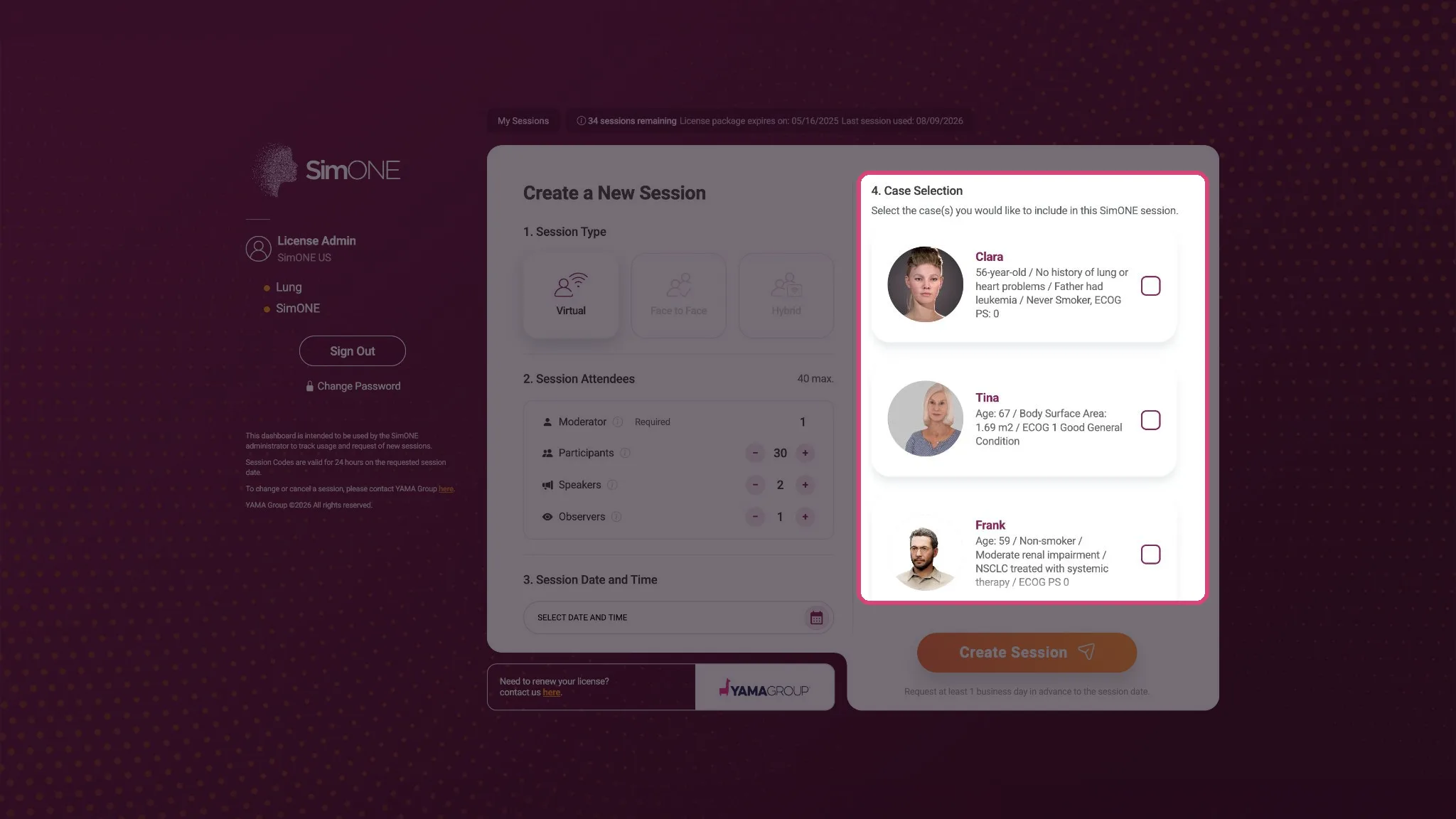
Create the session
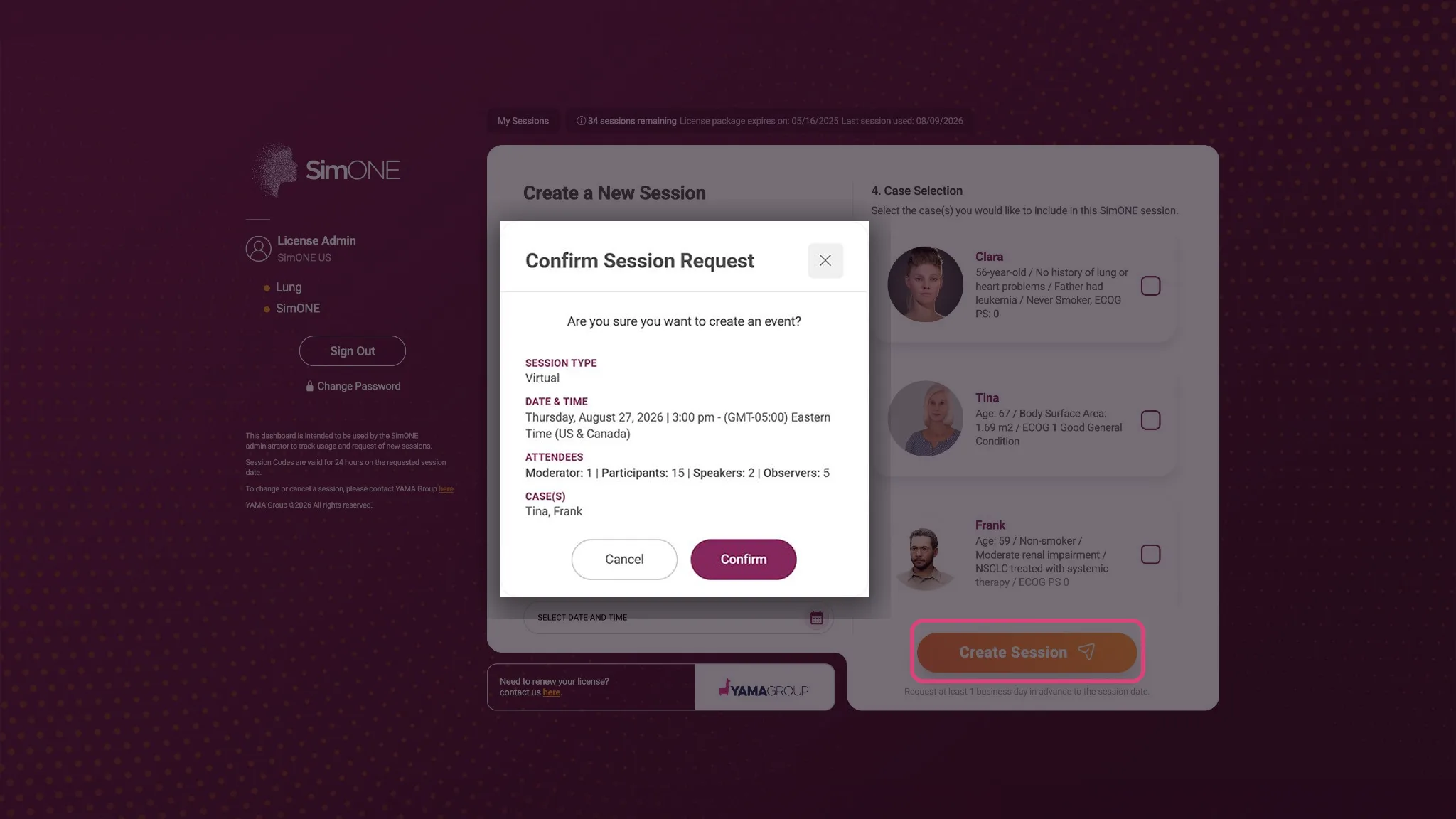
Click Create Session. A pop-up shows a summary of the session settings you selected. Click Confirm and the session is created; the access codes are sent to you by email.
It usually arrives within a few minutes. Check your spam or junk folder first, then use Resend codes from your sessions list (see Managing your sessions). For additional help, contact simone_dashboard@yamagroup.com.
Managing Your Sessions
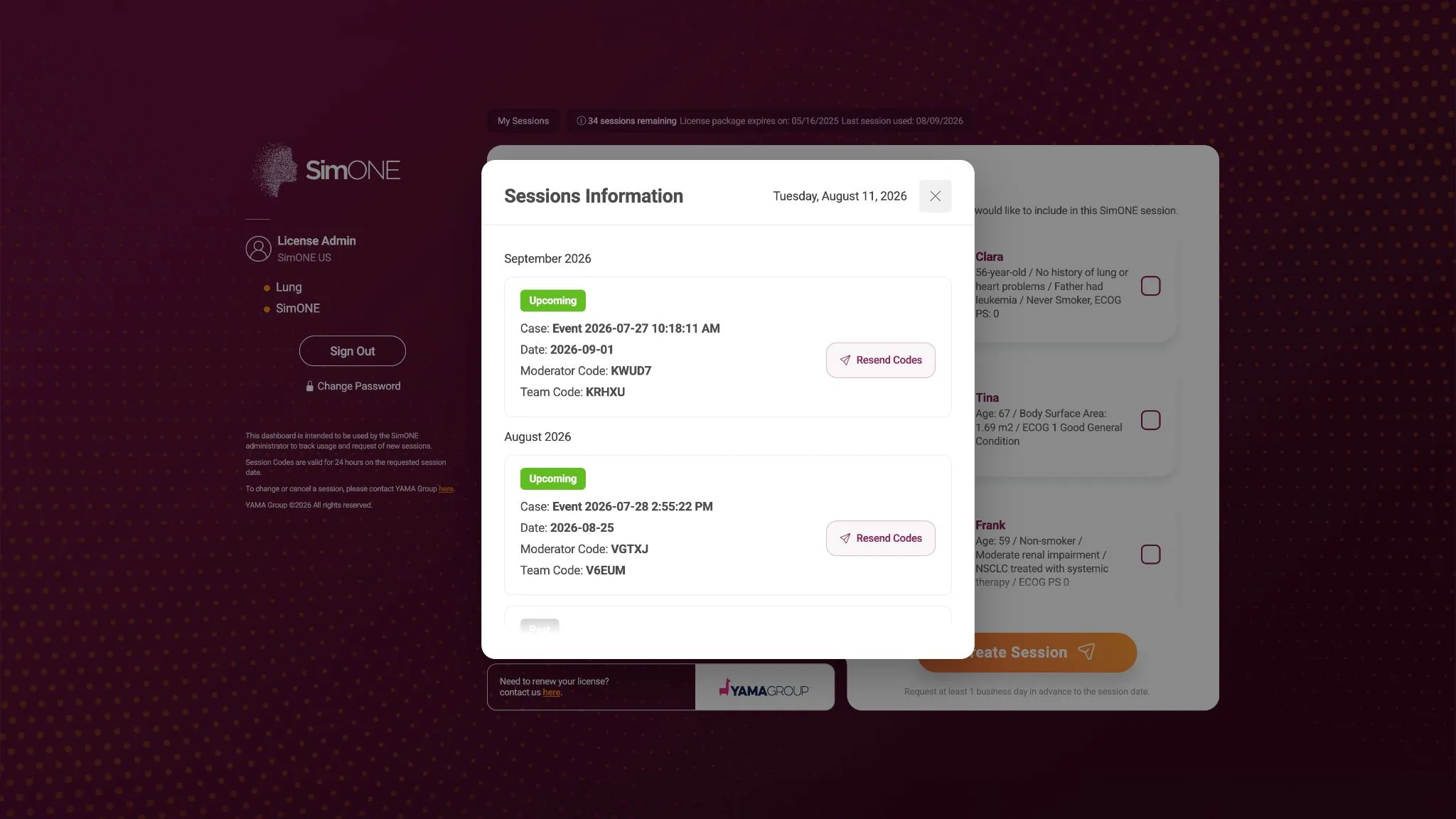
Click Sessions in the dashboard to view the list. All sessions (upcoming and today's) are displayed here, with the current status of each one clearly indicated:
- Pending — scheduled, not yet started.
- Active — within its 24-hour window; participants can join.
- Expired — the window has closed.
From here you can also resend the access codes for any session if needed.
SimONE Session Formats
| Feature | Face-to-Face | Virtual | Hybrid |
|---|---|---|---|
| Main Content View | Large screen on-site | Individual device screens | Shared screen on-site + Individual remote screens |
| Participant Interaction | Mobile phones via QR code | Desktop or Tablet | On-site: Phones (QR) / Remote: Own device |
| Moderator Location | On-site | Remote | On-site or Remote |
| Capacity | No limit for audience viewing | Max 40 active virtual users | Max 40 active virtual users |
 Face-to-Face Sessions
- Setup: Connect your laptop to a projector or large monitor.
- The View: The Moderator "drives" the experience on the big screen.
- Joining: Participants scan the QR code—always visible on the big screen—to interact on their phones during decision moments.
- Tip: Click the QR code on your screen to enlarge it for easier scanning.
 Virtual Sessions
- Setup: Every user connects via their own unique link.
- The View: Content is displayed directly on each participant's screen.
- Joining: We highly recommend using a desktop or tablet for the best experience.
- Best Practice: Keep groups under 30 people to encourage better clinical discussion.
Hybrid Sessions
- Setup (Moderator On-site): Join via the virtual link and share your screen in the room.
- Setup (Moderator Remote): Join via the virtual link. An on-site participant Observer role shares their screen locally.
- On-Site Participants: Scan the QR code on the shared screen to interact via mobile devices
- Remote Participants: Join via the session link to view content and participate in real time.
The observer sharing their screen should use a conference speakerphone on-site so the local audience can hear remote participants clearly.
All the data on the platform is uploaded prior to the live session. All additional information discussed during the sessions will not be stored and will be permanently deleted.